
Short answer
Try Omarchy for Windows first: it runs Omarchy in a window on Windows 10 or 11. Back up your files, then install Omarchy next to Windows with a free space install, so Windows stays bootable. Run the Try Omarchy import command to bring your trial setup over. Your rollback is simple: Windows is still in the boot menu.
1. Try it in a window
Try Omarchy for Windows runs Omarchy in a virtual machine on your PC, so you can explore apps, themes and the keyboard flow without repartitioning. Per its README you need 64-bit Windows 10 or 11 with hardware virtualization; ARM64 Windows PCs are not supported. The launcher is about 10 MB, and setup downloads about 2 GB. Your Linux files persist between sessions.
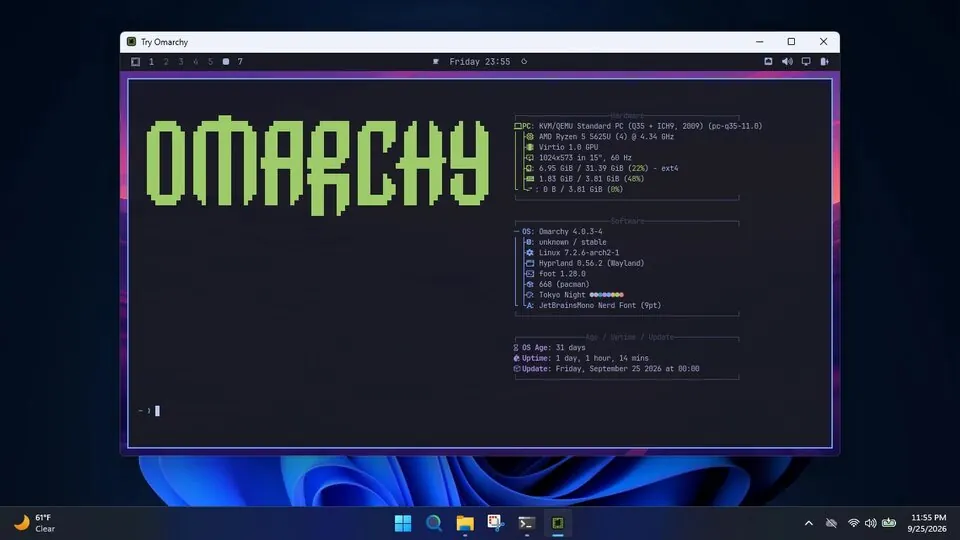
Image from the omacom/try-omarchy-windows README (MIT).
2. Back up and write things down
- Copy your files to an external drive: Documents, Desktop, Pictures, Downloads, game saves you care about.
- Note your license keys. If your PC shipped with Windows,
omarchy windows keycan print the OEM key from firmware later. - Check your password manager works on another device.
3. Install next to Windows
The safest move keeps Windows on the disk. In short: turn off BitLocker and Fast Startup, shrink C: in Disk Management, then choose Free space install in the Omarchy installer and run limine-scan afterward. The dual boot guide has every click.
4. Bring your trial setup over
If you used Try Omarchy, the project's migration guide says one command in your new Omarchy install reads the trial straight off the Windows drive. Open a terminal with Super + Return:
curl -fsSL https://tryomarchy.com/import | bashIt asks for your password, finds the trial, and lets you pick what comes over: settings, themes, keybindings, apps, files and projects. The guide says nothing on the Windows drive is changed. Keep Try Omarchy installed until the import is done, because uninstalling it deletes the trial.
5. Map your apps
| On Windows | On Omarchy |
|---|---|
| File Explorer | Nautilus (Super + Shift + F), Strata or flea |
| Snipping Tool | Print Screen |
| Nearby Share to phone | LocalSend |
| Microsoft Office | LibreOffice, web apps, or the Windows 11 VM |
| Zoom, WhatsApp | Preinstalled web apps |
| Steam, Battle.net, Epic | Install > Gaming |
| TeamViewer | RustDesk, see TeamViewer alternatives |
Shortcuts are covered in Windows shortcuts on Omarchy.
6. Your way back
- Windows is still there. Pick Windows Boot Manager in the Limine menu.
- A bad Omarchy update: boot the previous snapshot from Limine. Snapshots cover the system, not your files.
- Help: run
omarchy-debugand share it in #omarchy-help on the Omarchy Discord.
Video by Tech Enthusiast on YouTube. It loads from youtube-nocookie.com only after you press play.
Read next
Frequently asked questions
Can I try Omarchy without leaving Windows?
Yes. Try Omarchy for Windows runs Omarchy in a window on 64-bit Windows 10 or 11 with hardware virtualization. ARM64 Windows PCs are not supported.
Will I lose Windows if I install Omarchy?
Not if you choose Free space install. Windows stays on the disk and you add it to the Limine boot menu with limine-scan.
How do I move my Try Omarchy setup to a real install?
After installing next to Windows, run curl -fsSL https://tryomarchy.com/import | bash in Omarchy. It reads the trial from the Windows drive and lets you pick what to bring.
Why turn off Fast Startup before installing?
Omacom's migration guide says that with Fast Startup on, Windows never fully shuts down, so Omarchy would only see an out-of-date copy of your files.
How do I get back to Windows?
Choose Windows Boot Manager in the Limine boot menu. Run limine-scan in Omarchy if it is missing.
Sources
- omacom/try-omarchy-windows README
- Try Omarchy for Windows: moving to a real install
- Omarchy manual: Dual boot install
- Omarchy manual: Troubleshooting (omarchy-debug)
- Omarchy manual: Windows VM (omarchy windows key)
Facts, prices and requirements checked against the sources above on October 19, 2026. Vendor prices can change. Store screenshots were taken from this site; project screenshots are credited to their repositories. An independent community project, not affiliated with or endorsed by Omacom or David Heinemeier Hansson. Built with David's blessing.